






IoT Tesla Coil and Cooling Fan on the Localhost
April 2, 2020


Navigation Bar
Apply Theme
- Introduction
- Keywords
- Brands
- Hardware
- Software
- Description
- Preview: What You Will Learn
- Step 1: Developing the Tesla Coil Controller web application in PHP and JS
- Step 2: Setting up Arduino Nano 33 IoT
- Step 3: Programming Arduino Nano 33 IoT
- Step 4: Assembling the Mini Tesla Coil Module
- Features
- Connections
- Demonstration
- Project GitHub Repository
- Schematics
- Code
- Custom assets
- See on other platforms
- Related projects
Develop a web application in PHP and JavaScript to control a Tesla coil and a cooling fan via Arduino Nano 33 IoT. Get information from the Tesla Coil Controller without needing to click to a classic submit button.
Keywords
Hardware
- [1]Arduino Nano 33 IoT
- [1]Arduino Mega
- [1]DIY Mini Tesla Coil Module
- [1]DC Motor Fan
- [1]2-Way Relay
- [2]Breadboard
- [1]Female Barrel to Wire Jack
- [1]220 ohm resistor
- [2]5mm Green LED
- [1]Jumper Wires
Software
Description
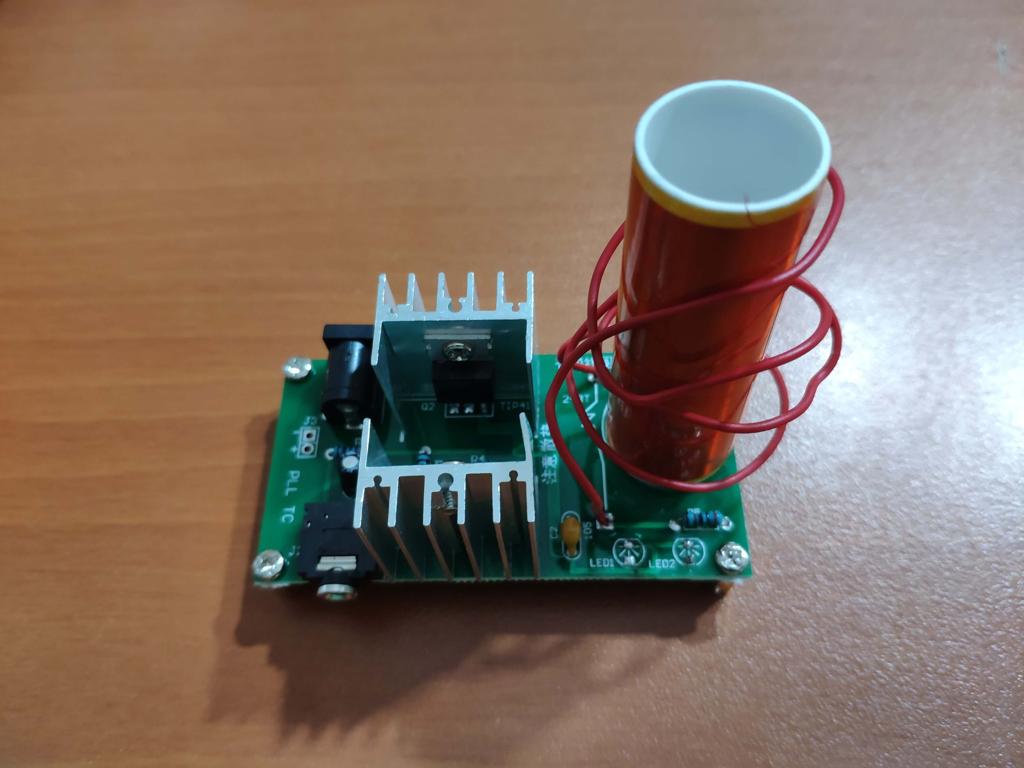
For some time ago, I have received a DIY Mini Tesla Coil Module as an affiliate marketing points bonus product. It is joyful to conduct experiments with a Tesla coil for an electronics enthusiast. However, although the Tesla coil module had some intriguing features, it was not as enhanced as I wanted it to be for adding it to my collection. And, most importantly, the module was overheating after 15 minutes of continuous load.
And thus, I decided to upgrade the module by adding an external cooling fan to resolve the overheating problem. But, I thought that it would not be enough to improve the module. So, I developed a web application in PHP and JavaScript (jQuery and AJAX) to control the mini Tesla module and the fan via Arduino Nano 33 IoT :)
Some of the mentioned products and components in this project are sponsored by digitspace:
- Arduino Nano 33 IoT with Headers | Inspect
- DC Motor Fan 130 DIY | Inspect


Preview: What You Will Learn
- How to develop a web application communicating Arduino Nano 33 IoT in PHP, HTML, and JavaScript
- How to send form data without requiring the user to click a submit button in jQuery and AJAX
- How to customize radio buttons in CSS
- How to create a database table in MySQL
- How to set up and program Arduino Nano 33 IoT
- How to split strings to glean information as substrings in Arduino
- How to use a 2-Way Relay (5V) with Arduino Nano 33 IoT
- How to assemble a DIY Mini Tesla Coil Module
Step 1: Developing the Tesla Coil Controller web application in PHP and JS
With this web application named Tesla Coil Controller, you can control a mini Tesla coil module and a cooling fan on the localhost. It saves the recently entered commands to a database table and prints the current information when requested by Arduino Nano 33 IoT.
Features:
1) Send form data (radio button values) without needing to click a classic submit button to Arduino Nano 33 IoT.
2) Turn on or off the mini Tesla coil module.
3) Turn on or of the cooling fan.

Database:
Create a database named `teslacoilcontroller` with a table named `values` in the localhost to save the recently selected commands and print that information when requested by Arduino Nano 33 IoT.
- You can download XAMPP here.
- Open the MySQL Admin page on XAMPP.
- Create a database named `teslacoilcontroller` using the interface.
- In MySQL, create a table named `values` with three variables - id, coil, and fan.
- In MySQL, insert the default variables - OFF, OFF.
- You can inspect the MySQL code in the table.sql file.


Class (PHP):
I wrote a class named tesla_coil for this project, which includes the functions and global variables used in the web application (Tesla Coil Controller). You can inspect it in the class.php file.
- In the database_define() function, define the database settings, the global conn, and table variables to connect to the database.
- In the save_data() function, update the database table with new commands to save them and return a feedback message.
- In the print_data() function, print the current commands in the database table.

Terminal (PHP):
Via the terminal, you can save data to the database table and send them to Arduino Nano 33 IoT when requested simultaneously.
- Include the tesla_coil class.
- Define a new tesla_coil object.
- Define the database and the table in which you want to save data.
- Enter the server name, the user name, the user password, the database name (teslacoilcontroller), and the table name (values).
- On the localhost, the given settings are the default settings. Change the database name (teslacoilcontroller) and the table name (values) if you created a different database and table.
- Obtain variables by an HTTP GET request - feature, coil, fan.
- Depending on the feature variable, save new commands to the table or print the current command variables.


Index (HTML):
- This is the user interface of the web application by which you can send data to the terminal and thus Arduino Nano IoT.
- Include the index.css and the index.js files.
- Define the radio button values for each option.

Index (CSS):
- Customize the radio buttons using the label tag and the :after pseudo-selector.
- Design the web application interface.

Index (JS):
- Add an event listener (input) to detect whether the user selects a new command by clicking a radio button to trigger an AJAX call.
- Define variables - coil and fan.
- Using the forEach() function, get the values of the checked radio buttons by the user as the selected commands - coil and fan.
- Make an AJAX call to send the selected commands to the terminal.
- Print the response message to see whether the commands are saved to the database table or not.
- In this way, you can send form data without needing to click a submit button.

Step 2: Setting up Arduino Nano 33 IoT
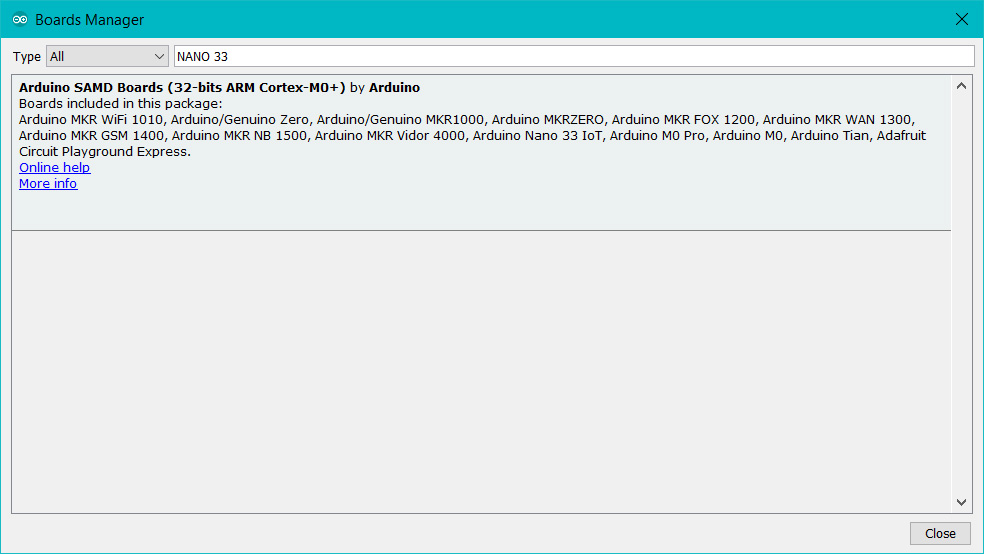
If you are a novice in programming with Arduino Nano 33 IoT: do not worry, it is simple to use with Arduino IDE. Just download the required drivers - Arduino SAMD Core - as well-explained here.
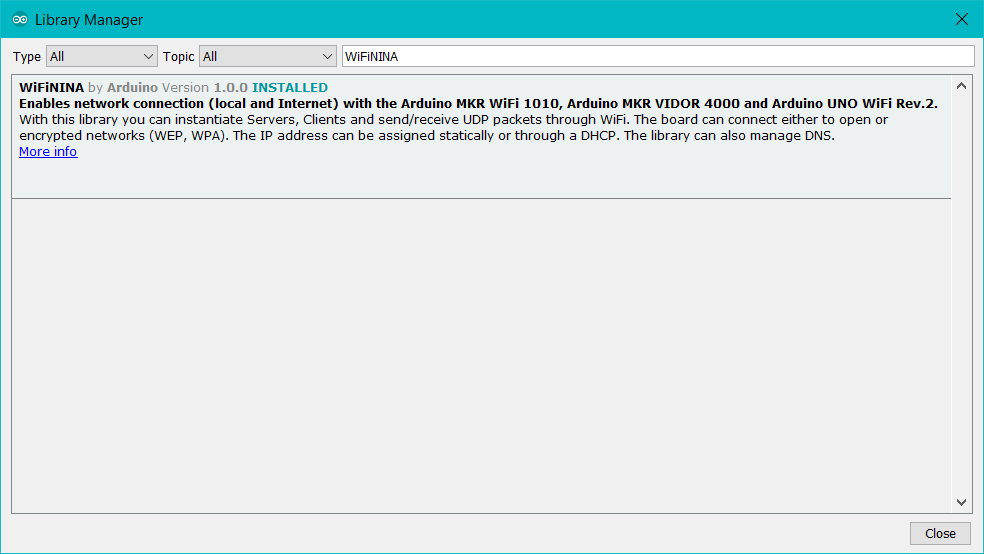
To be able to connect to the WiFi via Arduino Nano 33 IoT, download the WiFiNINA library from here.
Then, Arduino Nano 33 IoT will be ready to execute the source code for this project :)
Step 3: Programming Arduino Nano 33 IoT
- Include required libraries - SPI and WIFININA.
- Define your WiFi settings and localhost address (e.g., 192.1.168.22).
- Define the application (Tesla Coil Controller) terminal path in the localhost.
- Initialize the Ethernet client (WiFiClient) library.
- Define the data holders - readString, coil_status, and fan_status.
- Define the 2-Way relay input pins, and the control LED pin.
- Connect to the WiFi network.
- Connect to the web application named Tesla Coil Controller on the localhost - server, 80.
- Make an HTTP Get request to get data as the response - ?feature=print.
- Get the response text to obtain the command variables (coil and fan).
- Split the response string by a predefined delimiter in a simple way. I used '%' (percentage) as the delimiter in this project - indexOf("%").
- %ON%OFF%
- Glean information as substrings - substring(delimiter_1 + 1, delimiter_2).
- ON
- Blank the readString after obtaining information.
- Print the received commands.
- Activate features depending on the received commands.


Bonus: Observe the progress of data transferring on the serial monitor.


Step 4: Assembling the Mini Tesla Coil Module
I ordered this cheap module to spend my affiliate points but, in the end, it turns out to be an intriguing contraption via Arduino Nano 33 IoT :)
I only follow the well-explained instructions on the product page to solder all components precisely.
You can inspect the module and the instructions from here.

- Install 4 resistors - 2 x 10K and 2 x 2K.

- Install a ceramic capacitor, an electrolytic capacitor, an audio socket, and a power socket.
- Install heat sinks for 2 x IC - IRF530N and TIP41C.

- Install the primary coil and the secondary coil.

- Solder jumper wires to the power LED pins to move the LED to the breadboard.

Features
When the coil command is transferred from the web application (Tesla Coil Controller) to Arduino Nano IoT, turn on or off the mini Tesla coil module depending on the value - ON, OFF.

When the fan command is transferred from the web application (Tesla Coil Controller) to Arduino Nano IoT, turn on or off the cooling fan, and its control LED depending on the value - ON, OFF.

Connections
To supply the Tesla coil module, the cooling fan, and Arduino Nano 33 IoT, I used a 12V battery.
With a DC barrel power to wire jack, I connected the battery on the breadboard.
I affixed all components to the breadboards using a hot glue gun.
Due to the fact that I had a spare Arduino Mega at my disposal and am thinking further improvements for this project, I used the Arduino Mega to feed the 2-Way relay with stable 5V as depicted on the schematic. But, you can use a simple voltage divider instead.
Also, you can supply the cooling fan from Arduino Mega (5V) instead of directly from the battery to reduce torque.
You can view the pin connections on the schematic and in the Arduino code.


Demonstration
Project GitHub Repository
The project's GitHub repository provides:
- Code files
Schematics


Code
Select File
- IoT_Tesla_Coil_and_Cooling_Fan.ino
- class.php
- terminal.php
- index.html
- index.js
- index.css
- table.sql
Custom assets
Assets

See on other platforms
Related projects

IoT ISBN Verifier with Nokia 5110 Screen
Via Arduino Nano 33 IoT and a PHP web application, check whether you have a particular book in your library or not before purchasing by using ISBN.

How to use the cloud system of TheAmplituhedron to improve IoT projects [Deprecated]
Bring your ideas to life without considering that how to program a server to create a host for web communication using TheAmplituhedron.
WhatsApp Surveillance Video Camera with Infrared Proximity Sensor
Get notified via WhatsApp with a video(mp4) and a captured first-look thumbnail image as intrusion alert when the proximity sensor detects motion.
IoT Interactive New Year Gift Card on Localhost
Via ESP32; block the gift card, change the embroidery color, and play Jingle Bells. Share it with your friends as a piquant new year gift :)
RFID Desk Lamp
Supersede your old desk lamp with a new one controlled by an RFID tag or card and personalize it with an RGB color pattern to turn it off.